Instructions:
Step 1: On the Saifr Dashboard, click the New Submission button. On the New Submission pop-up, select the Upload Audio/Video option from the list of submission types.
Step 2: Upload the file into the workspace by dragging and dropping it or clicking inside the box to open the file manager and select the file to upload. The selected file shows below the upload panel. Continue the process by completing the following required steps.
After finalizing the last step, choose either Save and go to the draft or Save for later.
Users can create another submission or continue with other tasks while Saifr processes the mp3 or mp4 file in the background. The system notifies the user when the file has finished transcribing.
Step 3: The Notifications icon indicates there is a new notification. This is where users are alerted that the Audio/Video file has been transcribed and is ready to be scanned.
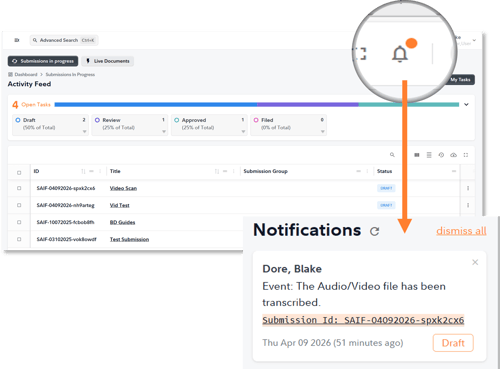
Click the hyperlinked Submission ID to navigate directly to the submission.
Once transcribed, the Audio/Video submission works as any other type of submission. Run a scan based on the models chosen during submission creation, check for disclosures, leave feedback, make changes based on suggested language, etc.
Helpful Information
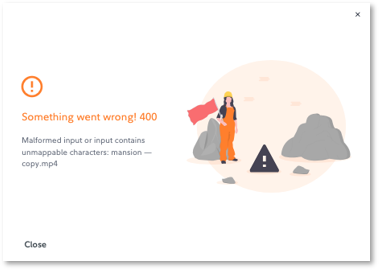
1 - When creating a new submission from an mp3 or mp4 file, keep in mind that the original file name must not include non-ASCII characters. This includes accented letters, non-English alphabets, symbols, en dashes and em dashes.
If a non-ASCII character is used in the name of the uploaded file, the system presents a 400 error.
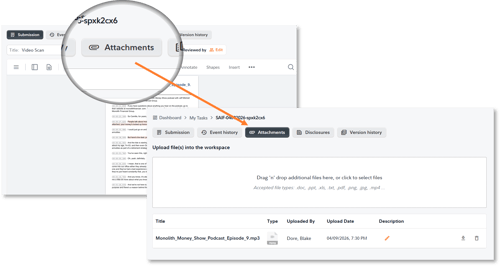
2 - When a submission is created from an mp3/mp4 file, the file is saved as an attachment on the submission. Therefore, in addition to running a scan, the file can be downloaded and opened from the dashboard.